Setups
Pick a screen. Hestia does the rest.
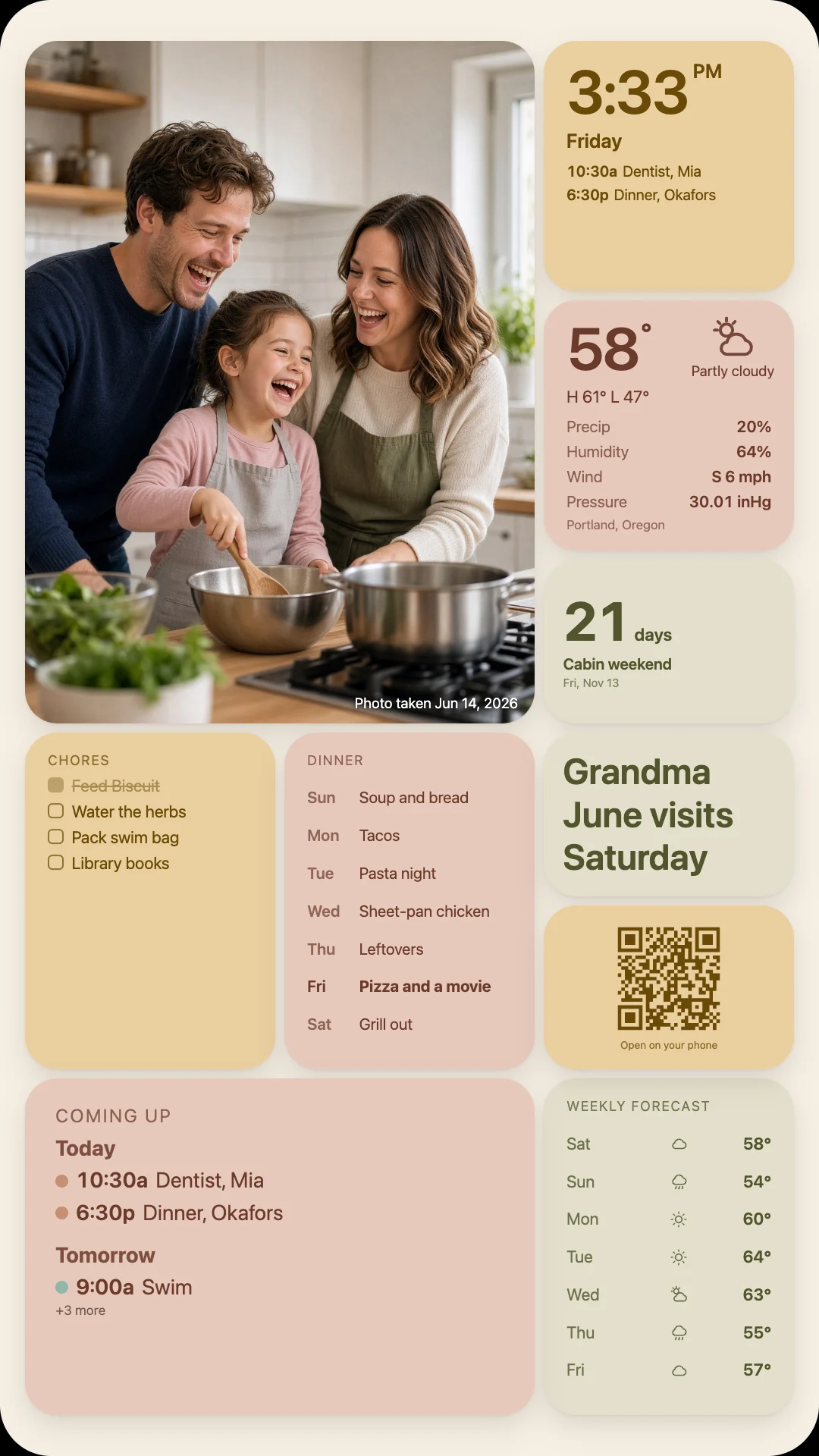
Five setups families use, from a small screen under the kitchen cabinet to the TV you already own. Each one shows what to get and how it goes up.
Links to Amazon are affiliate links: as an Amazon Associate, Hestia earns from qualifying purchases, at no extra cost to you. Check each listing for current price, size and fit.
Kitchen
Under the cabinet
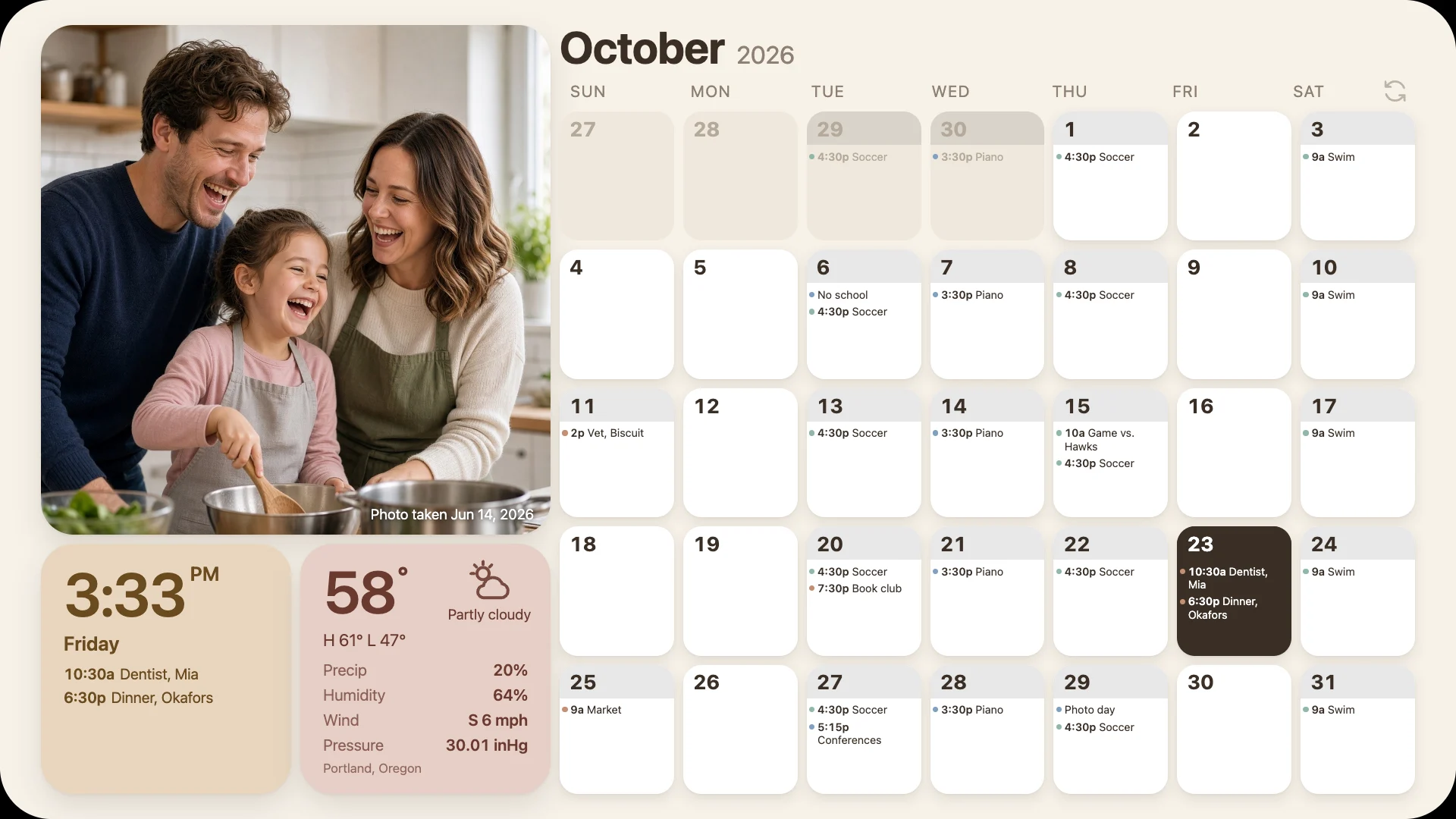
A flip-down screen lives under the cabinet and folds away when you want the space back. The day's plans and the weather sit at eye level while you make breakfast.
- Landscape
- Folds away
- Browser and Chromecast built in
What you need
- SYLVOX 15.6" Under Cabinet Smart TVFlips down 90° from under a cabinet. Runs Android TV with Google Play and Chromecast built in.View on Amazon
Set it up
- Mount it under a cabinet near an outlet and join your Wi-Fi.
- In its web browser, open
hestiacalendar.com/tv. It shows a code. - Type the code on your phone. The screen becomes your wall. (Or cast it from Chrome on a laptop.)
Living room
The TV, flat on the wall
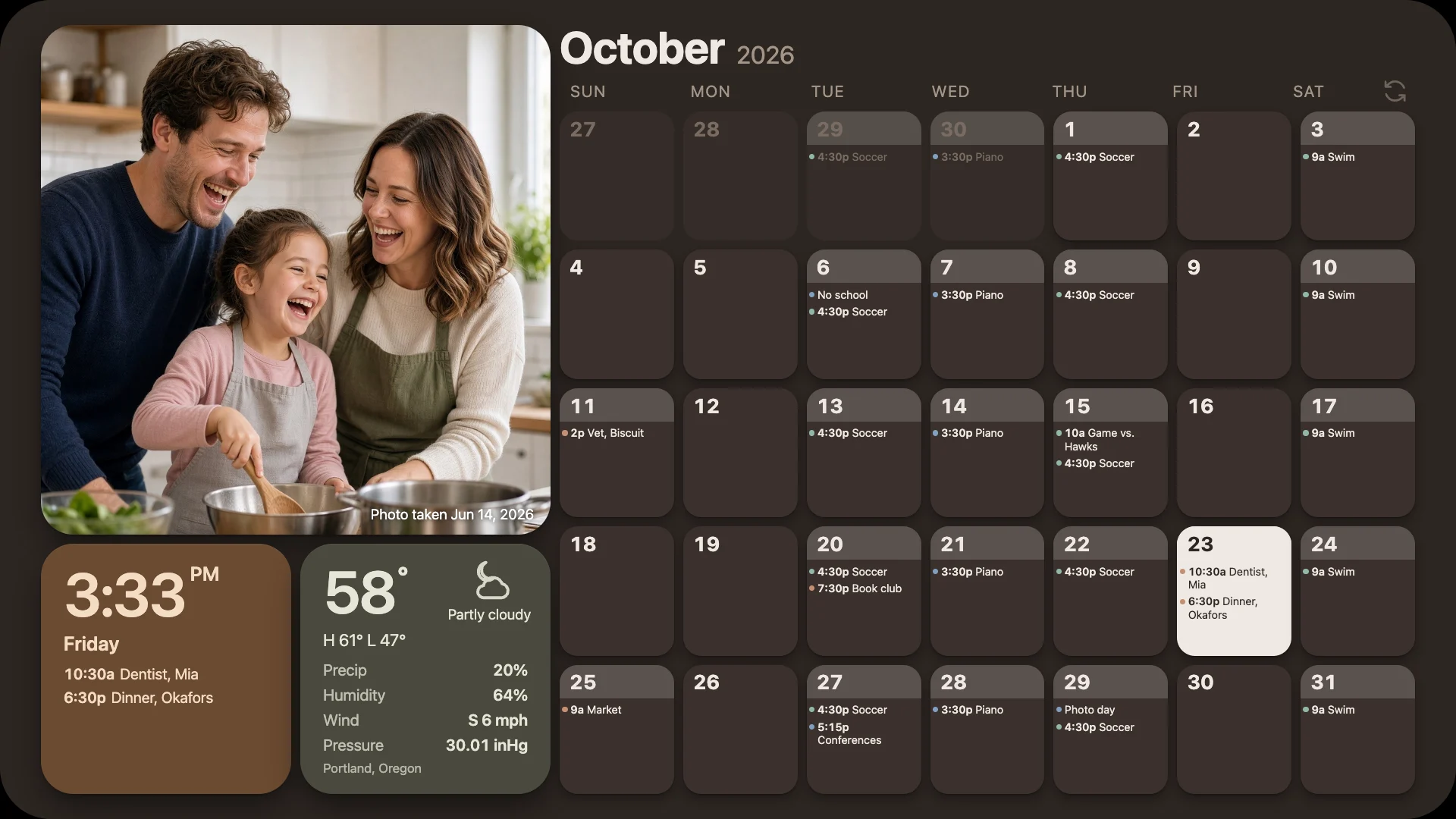
A low-profile mount keeps the TV nearly flush, like a picture. Hestia switches to its night colours at sunset, so it never glares across the room.
- Landscape
- Night colours after dark
- Works with a TV you have
What you need
- TCL 43" S4 4K Google TVGoogle TV with Chromecast built in, so you can cast your wall to it.View on Amazon
- Mounting Dream fixed low-profile TV mountFor 26–60" TVs. Check your TV's VESA pattern and weight against the listing.View on Amazon
Set it up
- Mount the TV and connect it to your Wi-Fi.
- Open your wall in Chrome on a laptop and cast the tab: Chrome menu → Cast.
- Pick the TV. Hestia keeps itself up to date from there. (Hestia's own cast button, which needs no laptop, is on its way.)
Desk or shelf
A spare monitor and a streamer
Any monitor with an HDMI port becomes a wall with a small streaming box plugged in. No computer stays switched on.
- Landscape
- No computer needed
- One cable to hide
What you need
- Dell S2725H 27" monitorFull HD with two HDMI ports and built-in speakers. Any monitor with HDMI works.View on Amazon
- Google TV Streamer (4K)Plugs into HDMI and has Chromecast built in. Needs a power outlet.View on Amazon
Set it up
- Plug the streamer into the monitor and set it up with the Google Home app.
- Open your wall in Chrome on a laptop and cast the tab: Chrome menu → Cast.
- Pick the streamer.
Hallway
A tall screen by the door
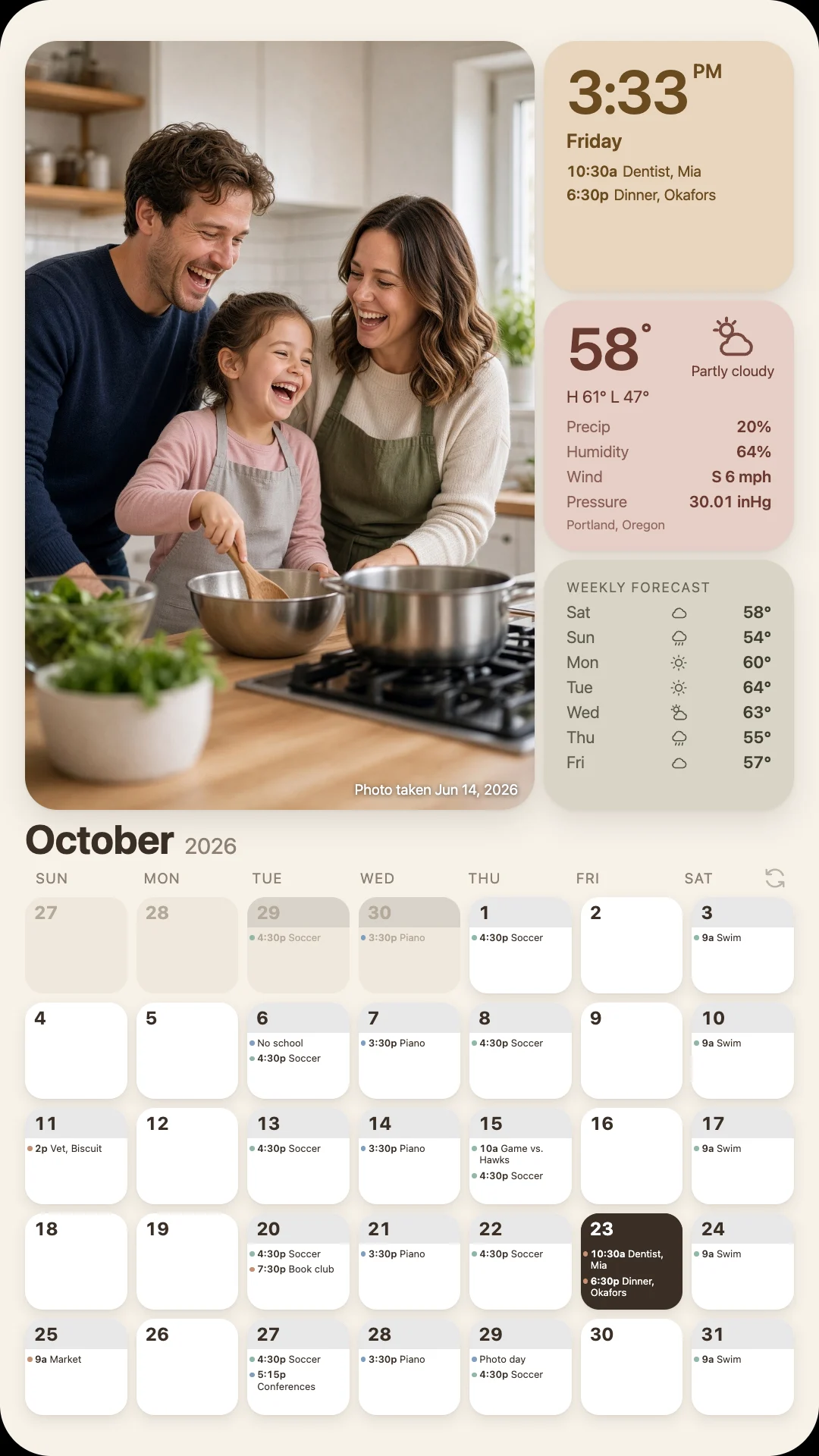
Turned on its side, a monitor shows the whole month with a big photo on top, where everyone passes on the way out. This is how the first Hestia wall was built.
- Portrait
- The most room for the month
- Runs all day, sleeps at night
What you need
- Dell 27 Plus S2725HSM monitorIts stand pivots to portrait. Any monitor you can turn on its side, or mount on the wall, works.View on Amazon
- CanaKit Raspberry Pi 5 Essentials KitA small, quiet computer to run the browser. An old laptop or mini PC does the same job.View on Amazon
Set it up
- Turn the monitor to portrait and set the computer's display rotation to match.
- Open your wall's display link in the browser and press fullscreen.
- Set the browser to open it on start-up, so the wall comes back after a power cut.
By the fridge
A tablet on the wall
The cheapest touch screen in the house. Anyone walking past can tap a day and add a plan, and it stays charged in its mount.
- Touch: tap a day to add
- Portrait or landscape
- Smallest and cheapest
What you need
- Amazon Fire HD 10 tabletA 10.1" Full HD screen. Any tablet with a modern browser works, including an old iPad.View on Amazon
- Wall mount for Fire HD 10 (2023)Holds the tablet flat against the wall with room for the charging cable. Check it matches your tablet's generation.View on Amazon
Set it up
- Mount it near an outlet and keep it plugged in.
- Open
hestiacalendar.com/tvon the tablet, add it to the home screen, and pair it with the code. - Set the screen to stay on while charging (on an iPad, Auto-Lock: Never).
Already have a screen? It probably works.
Anything with a modern web browser can show your wall. Open the demo on it to see, or follow the setup guides.